Image Adjustments
Adjustments change the target image before color reduction. They do not calibrate filament, change hiding distance, or guarantee that a displayed color is physically printable.
Move a slider to preview its effect; the preview updates when you finish the interaction. All start at zero. Individual reset arrows restore one slider; panel reset restores all sliders.
Tone And Color Controls
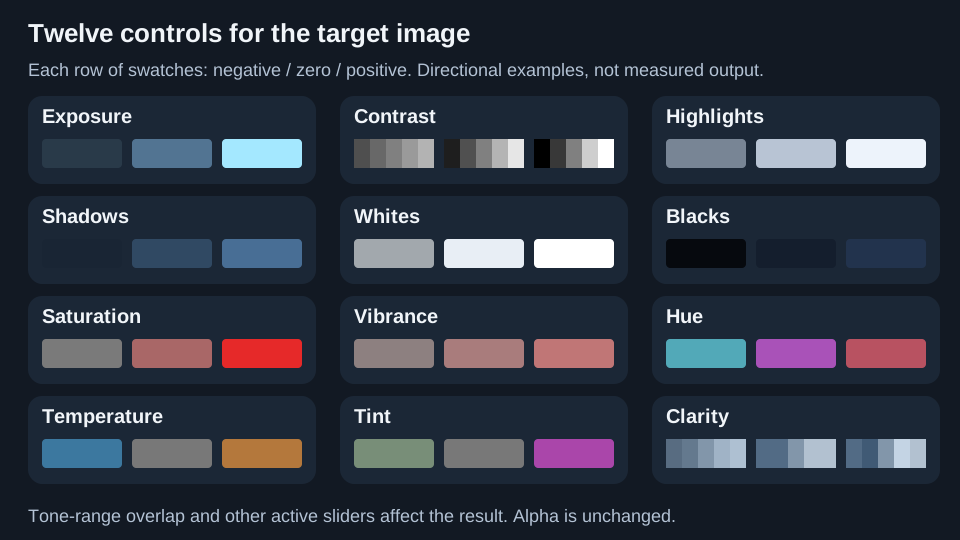
These are schematic directions, not calibrated print predictions. Effects depend on the source and other active adjustments.
Tone
| Slider | Range | Negative values | Positive values | Print-preparation consequence |
|---|---|---|---|---|
| Exposure | −3 to +3 stops, step 0.01 | Darken RGB values. | Brighten them; +1 doubles channel values until clipped. | Shifts broad target tones. This rendered-image adjustment cannot recover clipped RAW information. |
| Contrast | −100% to +100% | Pull tones toward middle gray. −100% becomes mid-gray before other adjustments. | Push tones away from mid-gray, clipping at black/white. | Separates major regions but can flatten subtle shadows/highlights. |
| Highlights | −100% to +100% | Darken bright regions. | Brighten bright regions. | Changes bright tones competing for the palette; cannot recover absent detail. |
| Shadows | −100% to +100% | Darken shadow regions. | Brighten shadow regions. | Can expose existing dark differences before reduction. |
| Whites | −100% to +100% | Darken the brightest region. | Brighten the brightest region. | Separates or combines near-white targets. Not a white-balance setting. |
| Blacks | −100% to +100% | Darken the darkest region. | Brighten the darkest region. | Changes near-black targets; pure black stays black because values are scaled. |
Highlights/Shadows cover broader ranges than Whites/Blacks. Ranges overlap: a very dark pixel can respond to both Blacks and Shadows. Tone ranges are evaluated after Exposure, Contrast, Temperature/Tint, and the HSL adjustments, so controls can interact.
Color And Local Detail
| Slider | Range | Negative values | Positive values | Print-preparation consequence |
|---|---|---|---|---|
| Saturation | −100% to +100% | Reduce intensity; −100% desaturates. | Increase intensity. | Changes image-color differences, not the physical filament gamut. |
| Vibrance | −100% to +100% | Reduce saturation more in relatively unsaturated colors. | Increase saturation more in relatively unsaturated colors. | Less uniform than Saturation, but not skin-tone-aware. Pure gray remains gray. |
| Hue | −180° to +180° | Rotate hues one way. | Rotate them the other way. | Recolors the entire image; use a swatch edit for one exact color. |
| Temperature | −100 to +100 | Cooler: less red, more blue. | Warmer: more red, less blue. | An approximate color-cast adjustment, not Kelvin. |
| Tint | −100 to +100 | Add green. | Add magenta, increasing red/blue and reducing green. | Corrects or introduces a cast; not a measured camera profile. |
| Clarity | −100 to +100 | Soften local contrast. | Emphasize local contrast and edges. | Can create edge colors/halos needing quantization. Does not recover detail or make thin lines wider. |
Other than Exposure and Hue, sliders use integer steps. Alpha remains unchanged. Quantization has different alpha behavior: it makes partially transparent pixels fully opaque.
Preview Versus Apply
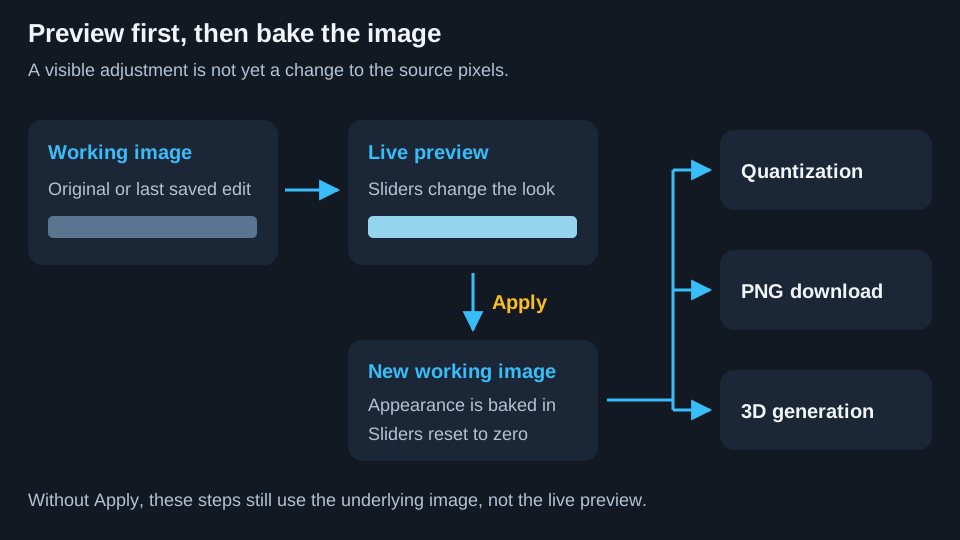
Apply bakes the current appearance into the underlying image, resets sliders to zero, and creates an image-history step. It does not reduce colors, build the model, or change print settings.
The distinction matters:
- Quantization, Resize Image, Download image, and 3D generation use the underlying working image, not unbaked preview adjustments.
- Image colors describes underlying pixels, so its swatches do not track live adjustments.
- Touch-up tools edit the underlying image; active adjustments reapply on top.
- Dedither reads the adjusted image. Bake first to avoid leaving adjustments active over its processed result.
The reliable sequence is preview adjustments → Apply adjustments → quantize → inspect/clean up → build 3D. Crop and resize before these steps when possible.
Reset And Undo Are Different
Reset removes a live adjustment, not an already-baked image edit. After Apply, zero-valued sliders are expected because their previous effect is now in the image. Use Undo to restore the earlier image.
Repeated Apply operations work on the already-edited image, so clipping and lost tonal detail can accumulate. Undo first when comparing alternatives.
Next: Reducing colors.