Reducing Colors
Quantization replaces many source colors with a smaller set, simplifying regions used by Manual and Auto-paint 3D workflows. A 2D palette contains target image colors, not an Auto-paint filament profile or measured print predictions.
Crop and resize first. If you changed image adjustments, click Apply in that panel before quantizing.
The Two-Stage Pipeline
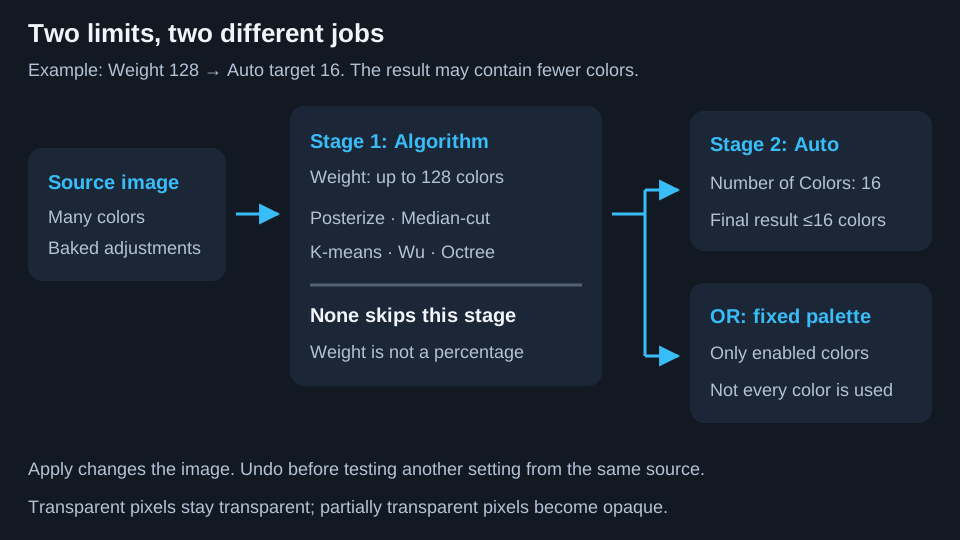
Algorithm Weight and Number of Colors do different jobs. K-means with Weight 128 first groups the source into up to 128 colors. Auto with Number of Colors 16 then merges that result to at most 16. Weight is not a percentage, opacity, or filament count.
| Field or action | Meaning |
|---|---|
| Palette: Auto | Finds image-dependent colors, then limits their count. |
| Palette: built-in, supplier, or custom | Maps the intermediate image to the selected palette's enabled colors. Not every available color must appear. |
| Number of Colors | Auto's final upper limit: 2 to 256, default 16. Disabled for a fixed palette. |
| Algorithm Weight | Intermediate palette budget: 2 to 256, default 128. A larger value usually retains more intermediate detail, not necessarily a better final match. |
| Algorithm | First-stage reduction method. Default: K-means. |
| Apply | Processes the underlying image and creates an Undo step. Changing a setting alone does not recolor it. |
| Reset arrow | Restores Auto, 16 colors, Weight 128, and K-means. It does not restore an earlier image. |
Output can contain fewer colors than requested. Raising the target after reduction cannot recover discarded colors: Undo first to compare alternatives from the same source.
Quantization preserves fully transparent pixels but makes all partially transparent pixels fully opaque. A soft alpha edge is not a partially printed edge.
Choose An Algorithm
These methods group colors. None adds a spatial dither pattern or guarantees that a small feature will survive your nozzle's line width.
| Algorithm | What changes | Useful comparison |
|---|---|---|
| None (postprocess only) | Skips the first-stage quantizer; Weight is disabled. Final count reduction or fixed-palette mapping still runs. | Directly map clean artwork to a known palette. It is not a universal “leave image unchanged” switch. |
| Posterize | Divides RGB channels into discrete steps, then enforces Weight. | Deliberately stepped graphics; available channel levels change in discrete jumps. |
| Median-cut | Splits the color distribution into buckets represented by average colors. | Compare when another method loses an important tonal group. |
| K-means | Finds pixel-count-weighted color clusters using random initialization. | A starting point for photos and mixed artwork. Runs from the same source can differ slightly. |
| Wu | Uses color-distribution statistics to choose divisions with less within-group variation. | Compare on gradients and photographs. |
| Octree | Groups colors through RGB subdivisions and combines groups to fit the budget. | Compare on artwork with many distinct regions. |
There is no universally best algorithm. Inspect the subject, small lettering, and important accents at the intended physical size.
Fixed And Supplier Palettes
A fixed palette offers only its chosen colors. After any first-stage reduction, each nontransparent pixel maps to the nearest available color in Lab color space. This is image-color matching, not filament optical simulation.
Supplier Palettes are unofficial reference sets of filament names and advertised hex colors. They do not guarantee current product availability or printed-color accuracy. For example, Bambu reference colors use Bambu Lab's filament hex chart. Kromacut is not affiliated with or endorsed by manufacturers.
Built-in and supplier palettes are read-only. Clone one to customize it. Use filament calibration separately for actual spool and layer behavior.
Custom Palettes
| Control | What to do |
|---|---|
| Create new palette | Name it and add at least one enabled valid color. It becomes selected. |
| Edit selected palette | Changes a custom palette, not current image pixels. Apply quantization afterward. |
| Add color | Adds a picker, hex field, and optional name. Valid entries use #RGB or #RRGGBB; invalid rows are omitted on Save. |
| Optional color name | Labels a color, for example a spool name. It does not change matching. |
| Eye toggle | Disables a saved color without deleting it. At least one valid color must remain enabled. |
| Remove row | Deletes the row; you cannot remove the last row. |
| Clone | Copies a non-Auto palette to an editable custom palette, preserving names and disabled flags. |
| Import | Reads a .kpal file and reports imported, overwritten, duplicate, or renamed entries. Selects the first imported palette when applicable. |
| Export | Saves the selected custom palette as .kpal, including names and disabled colors. Clone built-ins first to export an editable copy. |
| Delete selected palette | Removes the saved palette and returns its selection to Auto. Does not erase image pixels. |
| Save / Cancel | Commits or discards the editor draft. |
A selector label such as My Spools (5/8) means five enabled colors out of eight saved entries. Only enabled colors participate. Palettes and the selection are saved locally; export backups before clearing app/browser storage. They are separate from filament profiles.
Image Colors
Image colors describes the underlying image, not live unbaked adjustments. Its badge excludes fully transparent pixels. Tooltips show hex, alpha, and pixel count. Different alpha values can create separate entries with the same RGB. Very colorful images have a bounded displayed list rather than every photographic color.
Click a swatch for Edit Color. Use the RGBA picker or hex field, then Apply. Six-digit hex changes RGB while retaining the picker's current alpha; eight-digit hex explicitly includes alpha. Use the transparency control or an explicit alpha suffix when opacity matters.
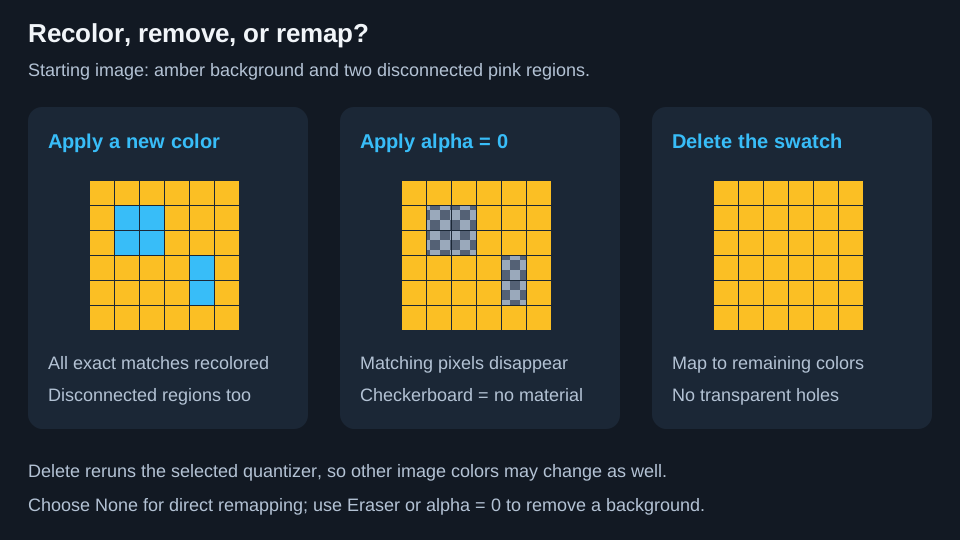
| Action | What changes |
|---|---|
| Apply an opaque color | Replaces every exact RGB-and-alpha match throughout the image, including disconnected regions. |
| Apply fully transparent alpha | Removes exact matching pixels from the visible image and printable silhouette. Matching subject pixels disappear too. |
| Apply to the transparent swatch | Replaces all fully transparent pixels, potentially adding a background or filling holes. |
| Delete | Requantizes using the remaining target palette. It does not erase pixels. The selected first-stage algorithm still runs, so other colors can change too. |
| Close / Escape | Discards the uncommitted edit. |
Choose None (postprocess only) before Delete for direct mapping to the remaining palette. Use Fill or Eraser for a local change. Undo if more of the image changes than intended.
Manual swap instructions are disabled above 64 nontransparent colors. A smaller palette can simplify the stack even below that limit, but fewer targets do not automatically mean fewer Auto-paint filament changes.
Next: Dedithering and cleanup.