Multi-Head Printing
Multi-head mode reorganizes the printable stack chosen by Auto-paint. Each image region can use a different filament on the same layer. Several heads keep filaments available between manual reloads; the analysis seeks better predicted color matches and schedules the required reloads. Fewer pauses are possible, but not guaranteed.
Prerequisites
- Use Auto-paint with at least one filament in its list, then enable Multi-head mode.
- Choose 2–8 heads and a Search depth, then Build 3D Model. Analysis needs at least two available filaments to form a useful window.
Multi-head and Flat Paint are mutually exclusive. Calibrate the filaments you actually own; see Calibration theory. Mode, head count, search depth, and color grouping are remembered between sessions. Rebuild after changing inputs.
Runs and Windows
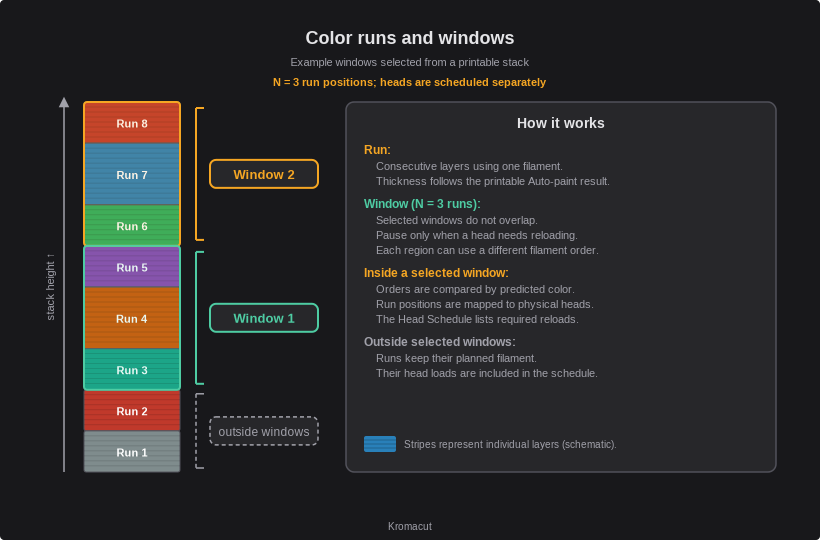
A run is a contiguous block of layers using one filament in the Auto-paint stack. Its thickness comes from the printable Auto-paint result, including calibration and height constraints, rather than source brightness alone.
A window spans N consecutive runs. N is limited by the selected head count, the available filaments, and the runs above the first run, which always keeps its filament; heads that are not needed stay EMPTY in the head schedule. The analysis selects useful, non-overlapping windows; it does not automatically group every run. Runs outside selected windows keep their planned filament and are included in the head schedule.
Choosing Filaments per Window
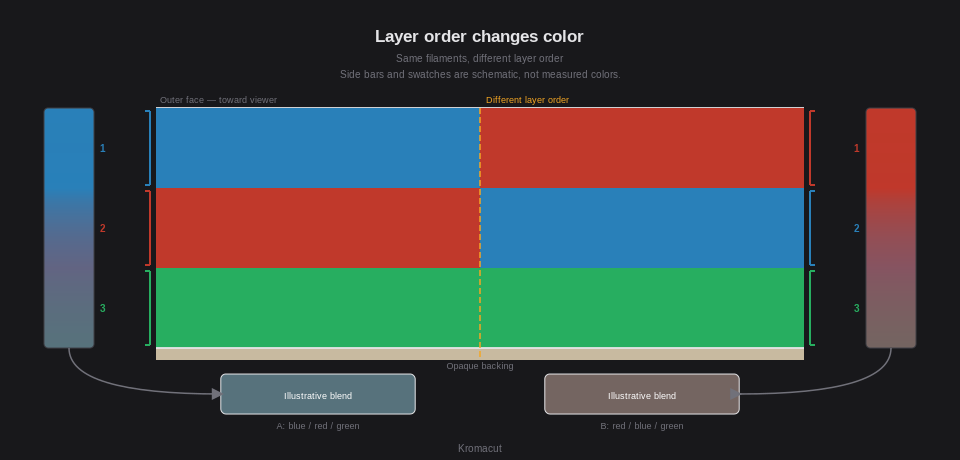
With K distinct filaments in a window and N run positions, there are K^N possible orders, including repeats. The analysis compares predicted blends using ΔE color difference and assigns an order to each image color region. A run position is not a fixed physical head: the schedule maps the required filaments to heads.
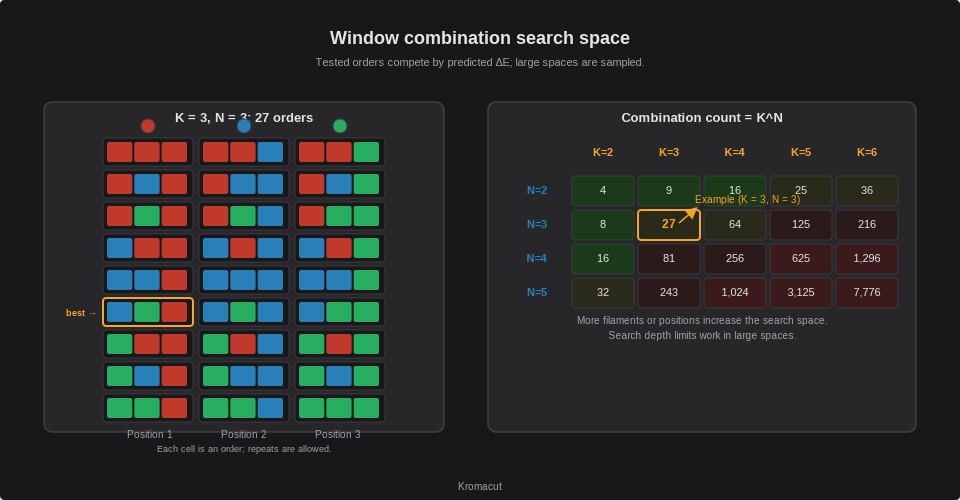
Search depth controls how readily windows are selected, how many can be selected, and how many orders are tested:
- Fast uses fewer window-selection iterations and a smaller combination budget.
- Balanced is the default compromise between effort and coverage.
- Thorough allows more windows and a larger combination budget; it can still sample large search spaces.
Within each depth's budget, all combinations are tested. Larger spaces use a bounded, deterministic sample plus the current order. Identical inputs give repeatable results. Every depth considers the same image colors; deeper search does not guarantee a better physical print. For target grouping, see Color Grouping.
Color Grouping
Before the search runs, Kromacut groups your palette into the target colors it will try to reproduce. The Color grouping control decides how:
- Layer-based (current) — colors that map to the same printer layer in the Auto-paint result are merged into one target. Different hues can therefore share a target. There is at most one target group per occupied layer.
- Color-based (per-hue) — distinct hues can remain separate targets on their original print layers. Large palettes are reduced within a group budget, with at least one group per occupied layer; colors from different print layers are never merged.
Color-based grouping does not guarantee lower color error or more printed colors. Results depend on the image, filament calibration, head count, and selected windows. Fast blend estimates nominate a bounded shortlist. Shortlisted orders and final region paths use the full calibration appearance model and usage-weighted CIEDE2000, scoring the original colors within each group. Builds can take longer. The colors you can print remain limited by your filaments and their physical stacks.
Color grouping is saved as soon as you change it, before building. Rebuild with each option and compare the previews for your image.
Head Schedule and Export
After a successful build, the preview shows each region's routed, simulated color. Physical colors shows the actual filament instead. Open Print Instructions and follow the Head Schedule:
- Before printing, load each listed filament into its numbered head. Leave EMPTY heads unused.
- At each listed layer checkpoint, reload only the marked heads. Unchanged loads are retained; not every window boundary needs a pause.
- Export 3MF to preserve routed geometry, physical filament colors, and head assignments. The file records the selected head count as extruders and adds M600 pause markers at the schedule's swap checkpoints. The download menu offers only 3MF for multi-head builds, because STL can't carry these assignments.
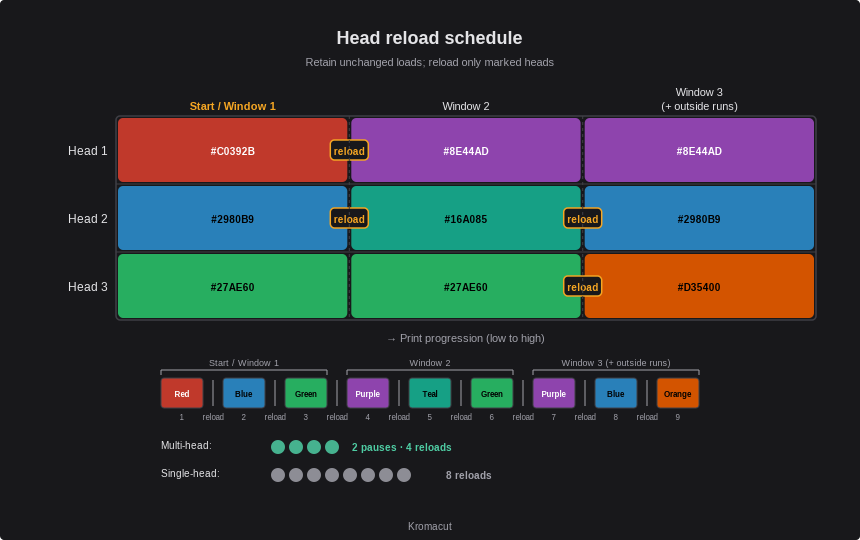
Use a compatible multi-head printer. Verify head mapping, first-layer and regular layer heights, and pause handling in your slicer before printing. One checkpoint can require reloading several heads.
Fallback and Rebuilding
If analysis fails, finds no usable layout that improves the normal stack, or predicts too small an improvement to justify the head swaps, the build produces a normal single-head model with a notice and its original start color and swap instructions. Try different filaments, a different head count, or another search depth, then rebuild.
Analysis runs in a background worker. Changing the image cancels pending analysis; build again for the new image. Instructions and exports describe the built model, so rebuild to apply changed settings.